Table of Contents
Introduction
Congratulations! You’ve installed WordPress, and now you’re staring at a fresh dashboard full of possibilities. But what’s next? Knowing the essential things to do after installing WordPress is the difference between a secure, high-performing website and one that’s vulnerable and slow.
This guide is your definitive WordPress beginner guide and WordPress setup checklist. We’ll walk you through the critical steps to secure, optimize, and prepare your new site for success. Follow this actionable plan to ensure your WordPress initial setup is done right.
Why a Proper WordPress Initial Setup is Non-Negotiable
A default WordPress installation is functional but not optimized. It’s like moving into a new house—you need to change the locks, set up the utilities, and unpack your boxes before it truly becomes a home. Skipping these steps can leave your site open to security threats, perform poorly in search engines, and provide a clunky experience for your visitors. This WordPress setup checklist is designed to prevent that.
Your Essential WordPress Setup Checklist
1. Secure Your Login Credentials
The default “admin” username is a major security risk, making you a target for brute-force attacks.
- Action: Immediately create a new administrator user with a unique username (e.g., your first name or a brand name). Assign all existing content to this new user. Then, log out and delete the default “admin” user.
- Pro Tip: Use a strong password generated by a password manager. This is the first and most crucial step in your WordPress initial setup security protocol.
2. Configure Your Core Settings
Navigate to Settings > General to lay your foundation.
- Site Title & Tagline: Ensure these are correct, as they are crucial for SEO and user recognition.
- WordPress Address (URL) & Site Address (URL): Double-check that these are correct, typically starting with
https://. - Administration Email Address: This is where critical alerts are sent. Keep it current.
3. Set Your Permalinks
Permalinks are the permanent URLs to your posts and pages. The default setting (?p=123) is ugly and not SEO-friendly.
- Action: Go to
Settings > Permalinks. The most recommended option is “Post name.” This creates clean, readable URLs likeyoursite.com/your-blog-post-title, which are loved by both users and search engines.
4. Install a Trusted Security Plugin
Security isn’t optional. A plugin like Wordfence or Sucuri provides a vital security firewall and malware scanner.
- Action: Install and activate your chosen plugin. Run an initial scan and configure the firewall. This is a non-negotiable part of hardening your WordPress installation.
5. Implement a Backup Solution
Your website is your digital asset. Protect it. If anything goes wrong, a recent backup is your only way home.
- Action: Install a backup plugin like UpdraftPlus or BlogVault. Configure it to automatically back up your site (both files and database) to a remote location like Google Drive or Dropbox on a weekly or daily schedule.
6. Choose and Customize a Theme
Your theme defines your site’s appearance. While the default themes are good, you’ll likely want one that fits your brand.
- Action: Browse
Appearance > Themesto find a suitable one. For beginners, lightweight, popular themes like Astra, Kadence, or GeneratePress are excellent choices as they are built for speed and ease of use. Avoid overly bloated “multipurpose” themes.
7. Install These Essential WordPress Plugins
Plugins extend your site’s functionality. But remember: quality over quantity. A common mistake for beginners is to install dozens of plugins, which can conflict with each other and drastically slow down your site. Start with these essential categories to optimize your new WordPress site for functionality and performance.
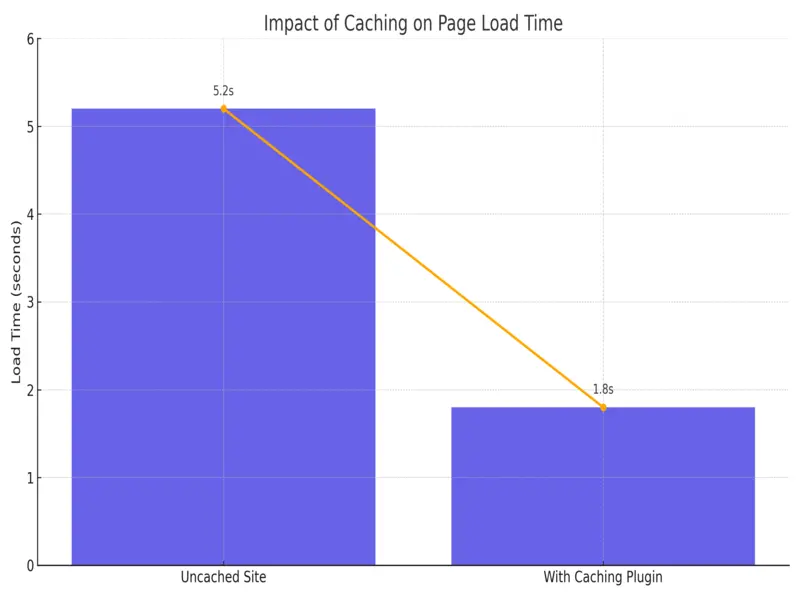
The chart below illustrates the critical impact that a caching plugin has on your site’s loading speed, a key factor in user experience and SEO.
To help you choose the right tools, here is a comparison of some of the most trusted plugins in each essential category:
| Category | Plugin Name | Key Features | Best For |
|---|---|---|---|
| SEO | Rank Math | Very user-friendly, powerful free version, built-in schema markup | Beginners to intermediates who want a full-featured free option. |
| SEO | Yoast SEO | The industry standard, robust features, reliable guidance | Users who prefer a established, widely-used plugin. |
| Caching | WP Rocket | Most powerful, incredibly easy setup, premium only | Site owners who want the best performance with minimal effort. |
| Caching | LiteSpeed Cache | Free, highly effective, requires LiteSpeed server | Those using hosting with a LiteSpeed server (like Cloudways). |
| Security | Wordfence | Web Application Firewall (WAF), malware scanner, login security | Everyone. Non-negotiable for securing your WordPress installation. |
| Security | Sucuri | Robust security hardening, excellent incident response | Those wanting a strong security-focused option. |
| Backups | UpdraftPlus | Reliable, easy to use, can backup to remote cloud storage | Anyone who needs a simple and trustworthy backup solution. |
| Backups | BlogVault | Real-time backups, stellar staging site tool | E-commerce sites or blogs with very frequent content updates. |
| Image Optimization | ShortPixel | Excellent compression rates, credits-based pricing | Sites using many images to maintain quality while reducing size. |
| Image Optimization | Imagify | Good free plan, user-friendly interface | Beginners who need to optimize a few images per month for free. |
Action: Do not install all of these at once. Review your needs from the table above. Start with one plugin from each category:
- Your chosen SEO plugin.
- A caching plugin (check if your host provides one first).
- A security plugin like Wordfence.
- A backup solution like UpdraftPlus.
Install and configure them one by one. After activating a caching plugin, use a tool like GTmetrix or PageSpeed Insights to see the dramatic improvement in your load times, as shown in the chart above. This process is the core of how you optimize new WordPress site performance and security.
8. Create Your Essential Pages
Every website needs core pages to establish credibility and provide key information.
- Homepage: Set a static homepage under
Settings > Readinginstead of a blog roll if you want a more professional landing page. - About Page: Tell your story and build trust with visitors.
- Contact Page: Use a plugin like WPForms or Contact Form 7 to create an easy-to-use contact form.
- Privacy Policy & Terms of Service: Legally required, especially if you collect any user data.
9. Connect Google Analytics and Search Console
You can’t grow what you don’t measure. These free tools from Google are indispensable.
- Google Analytics: Shows you who visits your site, how they found you, and what they do.
- Google Search Console: Helps you monitor your site’s presence in Google search results and identify technical SEO issues.
10. Delete What You Don’t Need
A clean site is a fast and secure site.
- Action: Delete the default “Hello Dolly” plugin, the sample “Hello world!” post, and any default comments. This is part of good WordPress maintenance and reduces database clutter.
WordPress Initial Setup FAQ
Get answers to the most common questions about essential things to do after installing WordPress. This WordPress beginner guide covers security, optimization, and setup best practices.
Why is WordPress initial setup important?
A proper WordPress initial setup is crucial because the default installation isn’t optimized for security, performance, or SEO. Following a WordPress setup checklist helps protect your site from hackers, improves loading speeds, and creates a better user experience.
What’s the first thing I should do after installing WordPress?
The first essential thing to do after installing WordPress is to secure your login credentials. Delete the default “admin” username and create a new administrator account with a strong, unique password to protect against brute force attacks.
How do I secure my WordPress installation?
To secure your WordPress installation: 1) Change default login credentials, 2) Install a security plugin like Wordfence, 3) Set up regular backups, 4) Limit login attempts, 5) Keep WordPress core, themes, and plugins updated.
What are the essential WordPress settings to configure?
Essential WordPress settings include: Permalinks (set to “Post name”), General settings (site title, tagline, admin email), Reading settings (static homepage vs blog), Discussion settings (comment moderation), and Timezone.
How can I optimize my new WordPress site for speed?
To optimize your new WordPress site: 1) Install a caching plugin, 2) Optimize images before uploading, 3) Choose a lightweight theme, 4) Minimize plugins, 5) Use a Content Delivery Network (CDN) if your audience is global.
What are the must-have plugins for a new WordPress site?
Essential plugins include: 1) SEO plugin (Rank Math or Yoast), 2) Security plugin (Wordfence), 3) Backup solution (UpdraftPlus), 4) Caching plugin (WP Rocket or LiteSpeed Cache), 5) Image optimization plugin (ShortPixel).
How do I set up proper permalinks in WordPress?
Go to Settings > Permalinks and select “Post name.” This creates clean, SEO-friendly URLs that are easier for users and search engines to understand. Avoid the default “Plain” setting which creates unreadable URLs with numbers.
What pages should I create first on my WordPress site?
Essential pages include: 1) Homepage, 2) About page, 3) Contact page with a form, 4) Privacy Policy, 5) Terms of Service (if applicable), 6) Blog page (if using a static homepage).
How do I connect Google Analytics to WordPress?
You can connect Google Analytics by: 1) Using a plugin like MonsterInsights, 2) Adding the tracking code manually to your header.php file, or 3) Using Google Tag Manager. A plugin is recommended for beginners.
Should I delete default WordPress content?
Yes, you should delete the default “Hello World” post, “Sample Page,” and any default comments. This helps keep your site clean and professional while reducing potential security risks from unused content.
How often should I backup my WordPress site?
Backup frequency depends on how often you update your site. For frequently updated sites, daily backups are recommended. For less active sites, weekly backups may suffice. Always backup before updating WordPress core, themes, or plugins.
What’s the best way to choose a WordPress theme?
Choose a theme that: 1) Is lightweight and fast-loading, 2) Responsive (mobile-friendly), 3) Regularly updated, 4) Has good reviews and support, 5) Matches your site’s purpose. Avoid overly complex multipurpose themes if you don’t need all their features.
How can I improve my WordPress site’s SEO during setup?
To improve SEO: 1) Set up SEO-friendly permalinks, 2) Install an SEO plugin, 3) Configure XML sitemaps, 4) Set up Google Search Console, 5) Ensure your site is mobile-responsive, 6) Optimize page loading speed.
What security measures are critical for a new WordPress site?
Critical security measures include: 1) Changing default login credentials, 2) Installing a security plugin, 3) Limiting login attempts, 4) Regularly updating all components, 5) Using SSL/HTTPS, 6) Setting up regular backups.
How do I make my WordPress site mobile-friendly?
To ensure mobile responsiveness: 1) Choose a responsive theme, 2) Test your site on various devices, 3) Use mobile-friendly plugins, 4) Optimize images for fast loading on mobile, 5) Keep design elements touch-friendly (appropriately sized buttons).
Following this comprehensive WordPress setup checklist will ensure your site is secure, optimized, and ready for content creation. Remember that maintaining your WordPress site with regular updates and backups is just as important as the initial setup.
Key Takeaways: Mastering Your WordPress Initial Setup
Successfully launching your website begins with a proper WordPress initial setup. This WordPress beginner guide has outlined the essential things to do after installing WordPress to ensure a secure, fast, and professional foundation.
Here are the critical points to remember from our comprehensive WordPress setup checklist:
- ✅ Security is Your First Priority: Your WordPress initial setup must begin with security. Immediately change the default “admin” username, create a strong password, and install a reputable security plugin like Wordfence to protect your site from threats.
- ✅ Configure Core Settings for SEO & Usability: Don’t skip the basic configuration. Set your permalinks to “Post name” for SEO-friendly URLs and carefully review your general, reading, and discussion settings. This foundational step is a must on any WordPress setup checklist.
- ✅ Optimize for Performance from Day One: To optimize your new WordPress site for speed, install a caching plugin and an image optimization tool immediately. Choose a lightweight, responsive theme to ensure fast loading times for your visitors.
- ✅ Install Plugins Strategically: Quality beats quantity. Focus on essential plugins for SEO (Rank Math/Yoast), security, backups, and caching. This is a cornerstone lesson in any WordPress beginner guide—too many plugins can slow down your site and create vulnerabilities.
- ✅ Establish a Maintenance Routine: The work doesn’t stop after the initial setup. Schedule regular backups, keep your themes and plugins updated, and monitor your site’s performance. This ongoing practice is just as important as the essential things to do after installing WordPress.
By following this structured approach, you transform a default installation into a powerful, optimized website ready for content and growth. Bookmark this WordPress setup checklist to ensure your WordPress initial setup is done right the first time.
Conclusion: You’re Ready for Launch!
Completing this comprehensive WordPress setup checklist might have seemed like a significant undertaking, but this investment of time is the most crucial step you can take for your website’s long-term success. By following this WordPress beginner guide, you haven’t just checked items off a list—you’ve built a resilient foundation.
You’ve systematically worked through the essential things to do after installing WordPress, transforming a vulnerable default installation into a powerful digital asset. Your site is now secure from common threats, optimized for blazing speed and search engine visibility, and structured for a professional user experience.
This thorough WordPress initial setup process is what separates an amateur site from a professional one. You’ve proactively prevented the headaches of security breaches, slow performance, and poor SEO that plague so many new site owners.
Your WordPress initial setup is complete. The technical groundwork is laid. Your site is no longer a generic template; it is a secure, optimized, and ready-to-grow asset poised for success.
Now, the canvas is primed and ready. It’s time to shift from setup to creation. Go forth and publish your amazing content, build your audience, and achieve your online goals!
🚀 Launch Your Online Dreams with Hostinger!
The content of this post is for general information only; we make no guarantees about its accuracy or completeness, and you use it at your own risk. We also use Google AdSense and affiliate links, meaning we may earn a small commission from purchases or clicks at no extra cost to you. This supports our site, and we only recommend products we believe in..
✨ Connect with Us ✨
Stay updated with our latest WordPress guides, SEO tips, and AI tools. Follow us on social media or reach out via email!
 Website
 Facebook
 LinkedIn
 X (Twitter)
 Email
Email
 Contact

You May Also Like:
Explore more powerful insights to level up your WordPress and SEO game:


💡 Keep exploring insightful tips and strategies at WordPressGuruPro.com